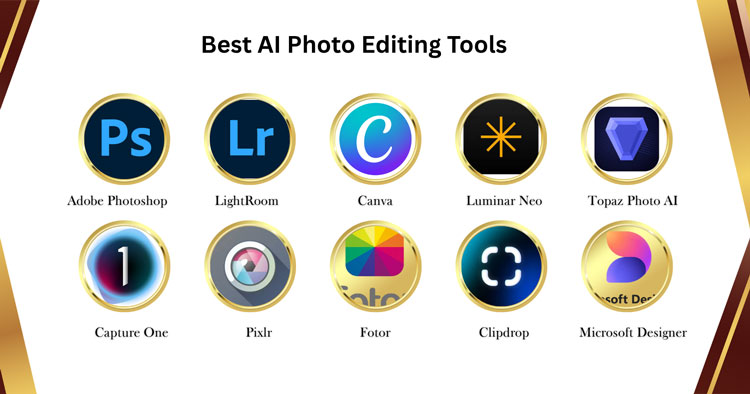
AI photo editing in 2026 feels less like one-click magic and more like having a fast, competent assistant sitting beside you. It can remove distractions, expand backgrounds, fix lighting, batch-retouch product photos, and even match a consistent style across hundreds of images. The catch is that not every tool is built for the same job. Some are made for high-volume eCommerce, like those offered by Cutout Image Media, while others are aimed at photographers, designers, or creators who need standout social content.
We’ve been in professional editing for a long time, and we’ve seen the pattern: AI is incredible for speed, but the best results still come from pairing smart tools with smart human judgment. With that in mind, here are the AI photo editing tools worth knowing in 2026, and what each one is actually best at.
Table of Contents
1. Adobe Photoshop (Firefly + Generative Fill)
Photoshop remains the gold standard because it combines AI with precise manual control. Generative Fill is still the feature people talk about most, since it can remove objects, create new background elements, extend canvases, and repair tricky areas with impressive realism. In 2026, Photoshop’s AI workflow feels smoother, especially when you use it alongside masks, adjustment layers, and smart objects to keep everything editable.
If your work needs pixel-perfect results, realistic composites, or complex retouching that cannot afford mistakes, Photoshop is still the most reliable “final stop.”
2. Adobe Lightroom

Lightroom is built for photographers who want speed, consistency, and clean organization. Its AI masking has become a daily driver for portrait edits, sky adjustments, subject separation, and selective color work. You can apply the same “look” across a shoot, tweak exposure and color precisely, and export fast for clients.
It is not a replacement for Photoshop when you need heavy retouching or object-level manipulation. However for high-volume editing tasks typical in eCommerce like those handled by Cutout Image Media, Lightroom is hard to beat.
3. Canva (AI Photo Editor + Magic Tools)
Canva is no longer just a simple design tool. In 2026 it is one of the fastest ways to create scroll-stopping visuals for social, ads, and brand content. Its AI background removal, object removal, instant resizing, and smart enhancement features make it a practical choice for marketers and small teams who need results quickly.
If your photo editing is tied closely to layouts, banners, product promos, or thumbnails, Canva’s all-in-one workflow saves a lot of time.
4. Luminar Neo (AI Relight + Sky + Portrait)
Luminar Neo is still one of the easiest tools for dramatic, good-looking edits without a steep learning curve. It shines for landscape, travel, and portrait enhancements, especially when you want to relight a subject, enhance the sky, smooth skin tastefully, or add stylized mood.
It is ideal for creators who care about aesthetics and speed, and less ideal for technical, brand-sensitive production work where every color must be exact.
5. Topaz Photo AI (Denoise + Sharpen + Upscale)

Topaz has carved out a strong niche: rescue and enhancement. If you deal with noisy low-light shots, motion blur, soft focus, or old images that need new life, Topaz Photo AI is one of the most effective tools available. The results can be surprisingly natural if you avoid pushing the sliders too far.
For photographers, event shooters, and anyone dealing with imperfect source files, it is an excellent problem-solver.
6. Capture One (AI Assist + Pro Color)

Capture One remains a favorite for professional studio workflows and color-critical projects. While it is not “AI flashy” in the same way as some newer tools, its AI assistance features and industry-level tethering are a major advantage for product and fashion. It handles skin tones, color grading, and controlled environments extremely well.
If your work depends on accurate color, consistent output, and studio-grade processes, it is a strong option.
7. Pixlr (Quick AI Edits In The Browser)

Pixlr is a practical browser-based editor when you need fast edits without opening heavy software. It covers common AI jobs like background removal, object cleanup, and quick enhancements. It is especially useful for teams that need something easy to access on any machine.
For professional production, it may not replace a full desktop workflow, but it is convenient and surprisingly capable for quick-turn tasks.
8. Fotor (AI Enhancer + AI Retouch)
Fotor has become a friendly middle ground for casual users and small businesses. It offers AI enhancement, retouching, background changes, and design-friendly outputs. If you are editing product images for marketplaces or improving photos for social media, it can deliver decent results quickly.
It is best when you want speed and simplicity more than deep precision.
9. PhotoRoom (AI Product Photos + Backgrounds)
PhotoRoom is built for one core job: making product photos look ready to sell. It excels at background removal, adding clean studio backgrounds, generating lifestyle-style scenes, and producing content sized for marketplaces and ads.
If you run an online shop, manage catalogs, or create listings daily, PhotoRoom is one of the easiest ways to move fast without sacrificing presentation.
10. Remove.bg (Background Removal Specialist)

Remove.bg is still one of the quickest tools for clean cutouts, especially for product images, portraits, and simple subjects. It is not meant to be a complete editor. It is meant to do one thing very well, and then hand off the result to your next step.
In high-volume workflows, it can save hours, especially when paired with batch processing.
11. Clipdrop (Cleanup + Relight + Generative Tools)

Clipdrop offers a set of AI utilities that feel like a Swiss Army knife: cleanup, background removal, relight, image upscaling, and generative features. It is great when you need rapid experimentation or quick fixes without building a complex workflow.
It is particularly useful for creators, designers, and small teams who want fast transformations and acceptable realism.
12. Microsoft Designer (AI Image Creation + Editing For Marketing)
Microsoft Designer has become more relevant for marketers who want quick creative variations. While it is known for AI-generated visuals, its editing features are increasingly helpful for campaign assets, social creatives, and quick brand content. If you live inside Microsoft’s ecosystem, it fits naturally.
It is not a replacement for detailed retouching, but it is strong for fast marketing output.
13. Pixelmator Pro (Mac-Friendly AI Editing)
Pixelmator Pro is a polished Mac editor that blends ease of use with strong AI features. It handles background removal, intelligent adjustments, and retouching in a way that feels fast and intuitive. For many users, it hits a sweet spot between “too simple” and “too complex.”
If you want a powerful editor without the weight of a full Adobe workflow, it is a solid choice on macOS.
14. Lensa (AI Portrait Retouching)
Lensa remains popular for portrait enhancements, especially for creators who want quick polishing for social media. It can smooth skin, adjust facial lighting, and enhance portraits in a way that is usually flattering, as long as you keep it subtle.
For professional portraits, you still want careful human retouching to avoid plastic-looking results, but for fast content it can work well.
15. Aftershoot (AI Culling + Editing For Photographers)
Aftershoot is different from the rest because it solves a major pain point: selecting the best photos from thousands. Its AI culling helps photographers choose winners, remove duplicates, and speed up the post-production process. Depending on workflow, it can also help with consistent edits.
If you shoot weddings, events, or any large sessions, culling is where time disappears, and Aftershoot helps you get that time back.
How To Choose The Right AI Photo Editing Tool In 2026
The easiest way to choose is to start with your actual workflow. If you need realistic object removal, composites, and fine control, Photoshop is the safest bet. If you need consistent edits across a shoot, Lightroom or Capture One will save you hours. If you run eCommerce, PhotoRoom and Remove.bg can speed up listings quickly. If you need rescue tools, Topaz Photo AI is a standout.
Here are two quick checkpoints that make the decision clearer:
- Volume vs. Precision: high-volume catalogs need batching and speed, while premium campaigns need accuracy and manual override.
- Style vs. Realism: some AI tools produce beautiful “looks,” but the most realistic results usually come from workflows that allow careful masking and correction.
Comparison Table
| Tool | Core Utility | Key AI Features |
|---|---|---|
Adobe Photoshop |
Professional Generative Editing |
Generative Fill, object removal, background swap, image expansion |
Adobe Lightroom |
Enhancement & Batch Editing |
Subject/sky masking, adaptive profiles, exposure & color balancing |
Canva |
Quick Graphics & Social Media |
Magic Eraser, background removal, AI generation, auto-resizing |
Luminar Neo |
Portraits & Landscapes |
AI Relight, sky replacement, portrait retouching, landscape tools |
Topaz Photo AI |
Quality Restoration |
AI Denoise, sharpening, upscaling, detail preservation |
Capture One |
Pro Photographer Workflow |
Intelligent auto-adjustments, pro color grading, tethered workflow |
Pixlr |
Quick Browser-Based Editing |
Online background removal, quick object erasing, filter effects |
Fotor |
One-Click Enhancements |
Auto-enhancement, skin smoothing, portrait retouching, upscaling |
PhotoRoom |
E-Commerce & Product Shots |
AI background removal, product scene generation, realistic shadows |
Remove.bg |
Background Removal |
Instant single-purpose background erasing & replacement |
Clipdrop |
Creative Cleanup & Lighting |
Image cleanup, relighting, upscaling, generative tools |
Microsoft Designer |
Marketing & Social Visuals |
AI content creation, marketing graphics, promotional design |
Pixelmator Pro |
Mac-Native AI Editing |
Super Resolution, color correction, intelligent object removal |
Lensa |
Mobile Portrait Retouching |
Face enhancement, skin smoothing, background blur, AI avatars |
Aftershoot |
Automated Culling & Editing |
Batch photo culling, automated color/exposure corrections |
Where Human Editing Still Wins (Even With Great AI)
AI in 2026 is impressive, but it still makes mistakes that professionals notice right away. It can soften the wrong texture, warp edges, misread product shapes, shift brand colors, or create strange artifacts around hair, jewelry, and reflective surfaces. The difference between “good enough” and “client-ready” often comes down to a trained eye and disciplined quality control.
That is also why professional teams still matter. At Cutout Image Media, we have more than 150 Photoshop professionals and over 16 years of experience serving clients worldwide. Our growth since 2010 has come from a simple focus: high-quality, creative work delivered reliably, even when the volume is high and the deadlines are tight.
Frequently Asked Questions
What Is The Best AI Photo Editing Tool In 2026?
It depends on your needs. Photoshop is best for precision and realism, Lightroom for batch photo workflows, and PhotoRoom for eCommerce product images. The “best” tool is the one that matches your volume and quality requirements.
Can AI Replace Professional Photo Editing Completely?
Not completely. AI is excellent for speed, but it still struggles with tricky edges, reflective products, accurate brand colors, and natural skin texture. Professional editing ensures consistency, quality control, and client-ready output.
Are AI Photo Editors Safe For Client Work?
They can be, if you review outputs carefully. AI can introduce artifacts or change details unintentionally. For client work, always check edges, color accuracy, textural realism, and whether the edit matches the brand’s visual standards.
Which AI Tool Is Best For eCommerce Product Photos?
PhotoRoom is great for fast, clean product images and marketplace-ready backgrounds. Remove.bg helps with quick cutouts. For higher-end results and complex retouching, Photoshop paired with professional editing is usually the best route.
How Do I Keep My Edits Looking Natural With AI?
Use AI lightly, then refine manually. Avoid over-smoothing skin, over-sharpening, and extreme HDR-like enhancements. Zoom in to check edges and textures, and compare your edit to the original to ensure it still looks believable.
Final Thought
At Cutout Image Media, we help brands, studios, and agencies turn raw images into polished, professional visuals with reliable turnaround and consistent quality. If you want editing that is fast, clean, and built to meet real business standards, we would love to take a look at your project and show you what our team can do.