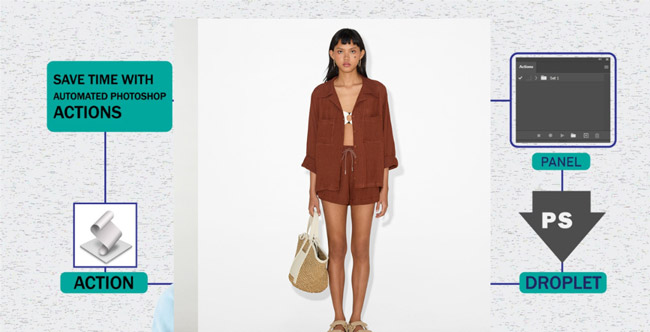
Today, we are going to unlock a feature in Photoshop that is an absolute game changer for your workflow. We’re talking about how to add actions to Photoshop, your secret weapon for turning all those complex multi-step edits into a single satisfying click. So let me ask you this: Have you ever been deep in a project, just slogging through, applying the exact same adjustments to dozens or maybe even hundreds of photos? You know, it’s that tedious grind that can totally drain your creative energy.
But what if you could take that entire sequence of edits and just learn how to install actions in Photoshop to collapse it all down into one powerful, repeatable command? This isn’t some far-off dream. It’s exactly what learning how to load actions in Photoshop is for. And we’re about to show you exactly how to use them via the Photoshop actions panel. Let’s just call this what it is: the repetitive editing problem. It is the hidden time sink in almost every creative’s workflow, and the fix is knowing how to import Photoshop actions to save your day.
But for that exact problem, there is an incredibly elegant solution built right into your software. Whether you need to know how to upload actions to Photoshop for a specific project or how to install Photoshop actions you just downloaded, it’s about to become your new best friend in the editing bay. Once you install Photoshop actions, you separate yourself from boring mechanical tasks and get back to actually creating.
Let’s dive below for a detailed explanation!
Table of Contents
What is a Photoshop Action
A Photoshop Action automates repetitive tasks. It functions like a digital recipe. Users find actions in Photoshop within a specific window. This window is the action panel in Photoshop. The software saves these commands as .atn files.
The Photoshop action record feature saves your steps. You click the record button. You perform your edits. You stop the Photoshop recording actions process. One click plays these steps back. This tool handles complex action Photoshop text effects. It creates intricate gold styles. It automates difficult frequency separation.
Many professionals offer Photoshop actions tutorials. These guides teach automation. Students take Photoshop actions courses. They learn batch processing. Users resize hundreds of photos. They apply consistent film looks. The software allows manual pauses. You adjust filter settings. You maintain visual consistency. One click saves hours of work.
Importance to Understanding Photoshop ActionHeading Text Here
Lorem ipsum dolor sit amet, consectetur adipiscing elit. Ut elit tellus, luctus nec ullamcorper mattis, pulvinar dapibus leo.
Photoshop actions provide massive time savings. They eliminate repetitive manual work. One click executes complex edits. Users resize hundreds of photos. They finish hours of work. This efficiency increases overall productivity. Professional photographers deliver projects quickly.
Actions ensure unwavering visual consistency. Every image receives identical adjustments. This uniformity maintains professional branding. You record your unique editing recipe. Your personal artistic vision stays constant. This signature style defines your work. Every product catalog looks perfect.
Automation enhances your technical skills. Novices apply high-end effects immediately. They use intricate frequency separation. Beginners achieve expert results easily. You peek under the hood of professional actions. You learn new layer techniques. Following recorded sequences reduces errors. Precision improves long editing sessions.
Production tasks become fully automatic. Actions handle watermarking. They manage file format conversions. Creative workflows become much faster. You test multiple artistic looks. Software sets up complex layer structures. This tool transforms your editing process.
Types of Photoshop Action

Photoshop actions fall into specific categories. Default actions come pre-installed. These include basic utility tasks. You record custom actions yourself. Many designers download third-party files. These files use the .atn extension. Professional photographers create high-end sets.
A function defines common action groups. Retouching actions focus on portraits. They automate skin smoothing. They manage frequency separation. Color actions apply cinematic looks. They create vintage effects. Artistic actions transform photos. These include watercolor styles. Some add dispersion effects.
Utility actions handle production work. They automate image resizing. They add watermarks. Design actions target typography. One click applies gold textures. Some create neon effects. These tools save design time.
Modern versions feature Quick Actions. These tools use artificial intelligence. The AI analyzes your image. The software suggests fifteen different edits. One click removes backgrounds. Another generates new content. These AI actions simplify complex tasks.
Finding and Downloading Photoshop Actions
Many websites offer free Photoshop actions. Experts recommend the best Photoshop actions. You find Photoshop actions free on Adobe Exchange. Users search for a free Photoshop action on Behance. This platform provides a Photoshop actions free download link. You get a Photoshop action free download from Brusheezy. These free Photoshop actions save time. Professional sites host free Photoshop action downloads.
Adobe Exchange offers a Photoshop actions download. Designers find Photoshop-free actions in creative communities. These free Photoshop action downloads improve quality. Professionals recommend top Photoshop actions. Beginners find good Photoshop actions on Phlearn. Artists share great Photoshop actions on DeviantArt. You download free Photoshop actions for portraits. These Photoshop actions for portraits smooth skin. These Photoshop actions for photographers automate lighting. Many users choose Photoshop portrait actions.
Creative artists use free Photoshop. Actions watercolor set. This free Photoshop watercolor action imitates paint. You find free Photoshop watercolor actions online. Every free watercolor Photoshop action adds texture. Some offer a free watercolor action in Photoshop. Use a Photoshop action for free. Try a free watercolor Photoshop action. Download a free watercolor action in Photoshop for free. This watercolor action Photoshop free download creates art. Get a Photoshop watercolor action free download.
Steps to Follow
Download and Unzip
Users download action files. Most files arrive as ZIP folders. Windows users select Extract All. Mac users double-click folders. You find the ATN file inside.
Open the Actions Panel
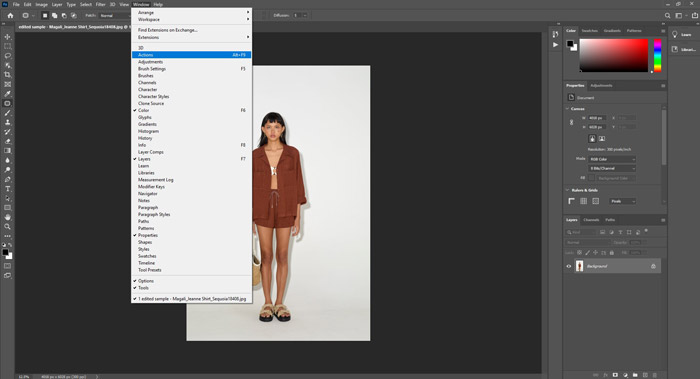
Launch the Photoshop software. Navigate to the Window menu. Select the Actions option. PC users press Alt F 9. Mac users press Option F 9.
Load the Action
Locate the panel menu icon. Click the four horizontal lines. Select the Load Actions command. This opens a file browser.
Locate the File
Navigate to your unzipped folder. Select the specific ATN file. Click the Load button. The action appears in your list.
Run the Action
Open your target image. Select the new action. Click the Play icon. The software executes the recorded steps.
How To Add Actions to Photoshop
Users install actions through the Actions panel. This window manages all .atn files. You open the Actions Palette via the Window menu. The top-right corner contains a drop-down menu. Click the Load Actions command. A file dialog appears on your screen.
Locate your specific ATN file. Open your file manager to find the download. Use Windows Explorer on a PC. Use Mac Finder on Apple computers. Select the file ending in “.atn.” Click the Load button. The software adds the ATN files immediately.
Try the double-click method for speed. Find the .ATN file in your folder. Double-click the icon. Photoshop opens automatically. The action appears in the panel. Use the drag & drop method for convenience. Drag the file from the Explorer. Drop it into the Photoshop window.
Open your Finder to organize files. Select the action name. Click the play button. The software executes the recorded steps. This process automates your editing workflow.
Steps to Follow
Steps to Install and Run an Action
Open the Actions panel. Select the menu icon. Load your ATN file. Open your target image. Select the action name. Click the triangle play button.
Steps to Record a Custom Action
Click the New Action icon. Name your new set. Click the record button. Perform your editing steps. Click the square stop button. The software saves your work.
Steps for Batch Processing
Navigate to the File menu. Select the Batch command. Choose your specific action. Select your source folder. Choose a destination folder. Click the OK button.
Important Troubleshooting Steps
Flatten your image layers. Check your layer names. Rename the base layer Background. Set the image mode. Choose 8-bit RGB mode. This fixes most common errors.
How to Use Installed Photoshop Actions
Many designers learn how to use Photoshop actions for efficiency. You start by opening your target image. Navigate to the Window menu. Select the Actions option. This step explains how to use actions in Photoshop. PC users press Alt F 9. Mac users press Option F 9.
Locate your installed action set. Click the small arrow icon. This reveals individual commands. This guide shows how to use Photoshop actions effectively. Select the specific action name. Click the triangle play icon. This button initiates the automated process. You learn how to use a Photoshop action with one click.
The software executes the recorded steps. Users understand how to apply actions in Photoshop quickly. The edits appear on your layers. This process demonstrates how to apply action in Photoshop. You save hours of manual work. The final result looks professional.
Steps to Follow
Step 1: Check Your Layers
Most actions require one background layer. Flatten your image first. Navigate to the Layer menu. Select the Flatten Image command. This prevents common execution errors.
Step 2: Verify Image Mode
Check your image color settings. Navigate to the Image menu. Select the Mode option. Choose RGB Color. Select 8 Bits Channel. This ensures action compatibility.
Step 3: Respond to Pop-ups
Actions sometimes pause for input. Dialogue boxes appear on screen. Adjust your filter settings. Press the Enter key. Click the OK button. The automation continues.
Pro Tip: Button Mode
Locate the Actions panel menu. Select the Button Mode option. Actions become color-coded buttons. This view simplifies your workspace. One click runs the command.
How to edit Actions in Photoshop
Users modify steps in the Actions panel. Double-click any command. Change the specific settings. Click the OK button. This process updates your recorded data. You learn how to create an action in Photoshop with precision.
Create an action in Photoshop by adding steps. Select your target command. Click the circle icon. This explains how to create action in Photoshop. Perform your new task. Click the square stop button. Users ask, “How do I create an action in Photoshop?” This method answers that question.
You understand how to make an action in Photoshop. Delete unwanted commands. Drag steps to the trash. Reorder the list. This guide shows how to make Photoshop action workflows better. Duplicating actions creates backups. This helps how to make an action photoshop users stay safe.
Learn how to record an action in Photoshop. Toggle the dialog icons. This shows how to record action Photoshop steps with pauses. Disable specific checkmarks. This teaches how to record Photoshop actions effectively. Record actions in Photoshop to save time.
Follow the steps on how to set up an action in Photoshop. Click the panel menu. Use export actions photoshop for sharing. Exporting Photoshop actions creates ATN files. This explains how to export Photoshop actions. Save your work in a secure folder.
Troubleshooting Common Issues in Installing Photoshop Actions
Perform manual troubleshooting for installation errors. Users check their version of Photoshop. Some actions require Adobe Photoshop CS5. Older software lacks certain features. Verify your active Internet connection. The software requires a valid Adobe ID. Users must sign in to Creative Cloud. Disable your virus scanner during the download. This prevents corrupted ATN files.
Check your image compatibility. Actions require 8-bit files. Many commands fail in CMYK mode. Convert your document to RGB. Missing fonts cause text action errors. Install all required typefaces first.
Identify specific broken steps. Expand the action list. Hold the Ctrl key. Click the play button. This runs one command. You find the exact error. Rename your base layer Background. Unlock all image layers. These steps ensure smooth automation.
Final Word on How to Use & Install Photoshop Actions
I mean, just look at the transformation. Your workflow goes from all those repetitive manual clicks to one-click automation. It goes from time-consuming, draining edits to massive time savings. And from inconsistent, slightly different results to perfect, reliable consistency every single time. The difference is just night and day.
If you are still having trouble with Photoshop image editing, you can seek the help of expert editing from Cutout Image Media.